How to Restore Old Photos Using AI Technology (2026)
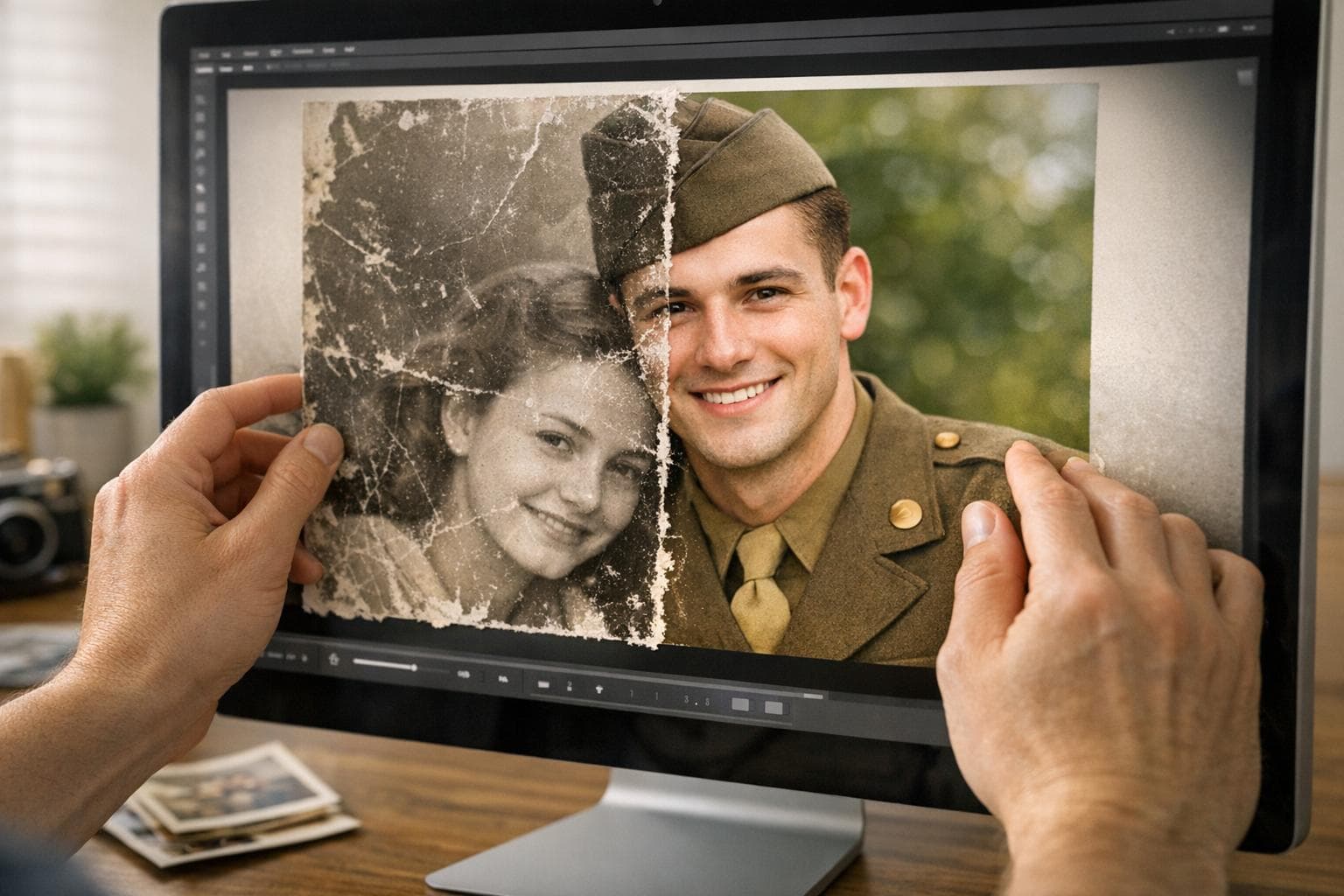
AI photo restoration in 2026 can repair scratches, remove water damage, sharpen faded faces, and add natural color to black-and-white prints — all in under a minute, without Photoshop expertise. The tools have advanced significantly: the latest generation targets specific damage types (tears, fading, mold stains) with separate AI models rather than applying a generic enhancement filter.
This guide covers the best AI restoration tools available in April 2026, the right way to scan your photos before restoring them, and a step-by-step workflow that works for everything from a single cherished portrait to a full family album.
Best AI Photo Restoration Tools in 2026
Soloa AI — Best for all-in-one creative workflows
Soloa AI integrates photo restoration with a full creative suite: image generation, upscaling to 4K, background removal, video creation, and voice synthesis — all in one platform. Its restoration tools handle scratch removal, colorization, face enhancement, and sharpening. New users receive 10 free credits to test the tools before committing.
| Plan | Credits | Price | Best For |
|---|---|---|---|
| Free trial | 10 credits | $0 | Testing a few photos |
| Basic | 100 credits/mo | $9.99/mo | Small family album projects |
| Pro | 300 credits/mo | $29.99/mo | Large batches, 4K upscaling, API |
| Credit packs | Varies | $4.99–$59 | One-off projects without subscription |
Pros: All-in-one platform, 4K upscaling, batch processing, API access
Cons: Credit-based model can limit high-volume use on lower plans
ON1 Restore AI — Best new tool of 2026
ON1 Restore AI launched in April 2026 as part of ON1 Photo RAW MAX 2026. It processes photos in the cloud and handles a wide range of physical media: old black-and-white prints, color snapshots, negatives, and slides. Its model addresses next-generation damage types — severe water damage, mold spotting, major structural tears — and pairs with strong noise reduction for early digital photos that show heavy grain or JPEG compression artifacts.
Pros: Handles negatives and slides, specialized damage models, cloud processing
Cons: Newer tool with less community testing data; part of ON1 subscription ecosystem
Renew Photo — Best for severe damage
Renew Photo applies multiple specialized AI models sequentially — one for structural tears, one for water staining, one for general fading — completing repairs in under 60 seconds with no manual input. It excels on the most heavily damaged photos where general-purpose tools produce unnatural results. Best for restoration projects where photos are extensively damaged rather than just mildly faded.
Pros: Purpose-built for heavy damage, multi-model approach, fast automated pipeline
Cons: Less useful for mildly faded photos that don't need aggressive restoration
RetroFix — Best for mildly faded photos
RetroFix handles less severe damage quickly — color correction, gentle sharpening, minor scratch removal — without the aggressive processing that can make over-restored photos look artificial. Ideal for batch restoration of family snapshots where the goal is freshening rather than reconstructing. Processing is fast, making it practical for large collections.
Pros: Fast, natural-looking results on light-to-moderate damage, good for batches
Cons: Not designed for severely damaged photos; heavy damage needs a more powerful tool
HitPaw FotorPea — Best free desktop option
HitPaw FotorPea offers strong AI photo restoration on desktop (Windows and macOS) with a generous free tier. It handles scratch removal, face enhancement, colorization, and upscaling. The local processing means no privacy concerns about uploading family photos to a cloud service.
Pros: Strong free tier, local processing, face enhancement, colorization in one tool
Cons: Desktop-only; cloud batch features require paid plan
LetsEnhance.io — Best browser-based free option
LetsEnhance.io offers web-based restoration with a dedicated vintage damage model trained specifically on old prints. Upload a scan, select the vintage restoration preset, and the AI corrects yellowing, fading, and minor physical damage. Strong free tier for occasional use.
Pros: Browser-based, no install, dedicated vintage model, strong free tier
Cons: Less capable than specialized tools on severe structural damage
Tool Comparison at a Glance
| Tool | Best For | Free Tier | Price | Colorization |
|---|---|---|---|---|
| Soloa AI | All-in-one + 4K upscaling | 10 credits | From $9.99/mo | Yes |
| ON1 Restore AI | Negatives, slides, heavy damage | Trial | Subscription | Yes |
| Renew Photo | Severely damaged prints | Limited | Paid | Yes |
| RetroFix | Mild fading, large batches | Yes | Freemium | Yes |
| HitPaw FotorPea | Desktop, privacy, free use | Yes | Free / Paid | Yes |
| LetsEnhance | Browser, vintage damage model | Yes | Freemium | No |
How to Scan Your Photos for Best Results
The AI can only work with what you give it. A blurry, low-resolution scan produces a blurry, low-resolution restoration. A clean, high-DPI scan gives the model detail to reconstruct.
Step 1
Set scanner resolutionUse 600 DPI for most restoration work. At 600 DPI, a 4×6 print can be enlarged to 8×12 without losing detail. For archival use or prints smaller than 4×6, use 1200 DPI. 300 DPI is only acceptable if the original photo is large (8×10 or bigger).
Step 2
Prepare the photoUse compressed air to remove dust from the photo surface and a lint-free cloth to clean the scanner glass. Handle photos by their edges or wear nitrile gloves — skin oil degrades image quality and can interfere with delicate surfaces. If a photo is curled, flatten it under a heavy book for 30 minutes before scanning. Do not try to manually uncrease bent areas — let the AI repair the crease line digitally.
Step 3
Save in the right formatSave scans as PNG or TIFF for lossless quality. JPEG is acceptable if you keep file size above 5MB (high quality setting). Always scan in RGB color mode — even for black-and-white photos — so colorization tools have full color data to work with. Avoid compressing files into ZIP archives before uploading, as repeated save-and-compress cycles degrade quality.
Step 4
Organize before uploadingGroup photos into batches of 10–15 similar images (same era, same damage type). Use descriptive filenames like Johnson_NYC_1953.png. Keep originals in a separate folder — never overwrite source files. Work from copies.
Step-by-Step: Restoring Photos on Soloa AI
- Create an account at soloa.ai. New users receive 10 free credits automatically.
- Upload your scan. Navigate to the photo restoration tool and upload your image. Soloa accepts JPG, PNG, and TIFF.
- Select your effects. Choose from scratch removal, colorization, face enhancement, sharpening, or 4K upscaling. Each effect uses one credit. For a heavily damaged photo, apply effects in order: scratch removal first, then sharpening, then colorization.
- Adjust intensity. Use the slider controls to dial back any effect that looks over-processed. Colorization in particular can be aggressive — a 60–70% intensity often looks more natural than full strength on old portraits.
- Preview and download. Compare the before/after at full resolution before downloading. For batch projects, process in groups and review each output before moving to the next.
Pro tip: For black-and-white photos you want to colorize, apply face enhancement and sharpening before colorization. A sharper source image gives the colorization model more detail to work from, producing more accurate skin tones and clothing colors.
What AI Restoration Can and Cannot Fix
Modern AI restoration handles the following damage types well:
- Scratches and surface abrasions
- Fading and color shift (yellowing, cyanotype fading)
- Minor tears and creases
- General blurriness from camera shake or focus
- Colorization of black-and-white images
- Face detail recovery (sharpening eyes, skin texture)
Current AI tools struggle with:
- Large missing areas (a torn corner, mold damage covering more than ~15% of the image)
- Fire damage with extensive char
- Photos that are so underexposed the detail is simply not present in the scan
- Water damage that has caused extensive dye migration (colors bleeding into each other)
For severe structural damage — large missing sections, extensive mold, flood damage — professional manual restoration by a retouching artist produces better results. AI works best as a complement to manual work on the most extreme cases, not as a full replacement.
Start Restoring Photos on Soloa
Scratch removal, colorization, face enhancement, and 4K upscaling — all in one platform. Start free on Soloa →
Frequently Asked Questions
What is the best free AI tool to restore old photos in 2026?
HitPaw FotorPea offers a strong free desktop option with colorization and face enhancement. LetsEnhance.io has a dedicated vintage damage model and is free for occasional use. Soloa AI gives new users 10 free credits to restore a batch of photos before any payment is required.
Can AI restore severely damaged or torn photos?
For moderate damage (scratches, fading, minor tears), yes — all the tools in this guide produce excellent results. For severe damage such as large missing sections, extensive mold, or flood-damaged prints, Renew Photo and ON1 Restore AI handle the most difficult cases. Very large missing areas may still require a professional retoucher for the best outcome.
Can AI colorize old black-and-white photos accurately?
AI colorization in 2026 is impressive for most subjects — outdoor scenes, clothing, skin tones, and natural environments colorize convincingly. Less predictable results occur on unusual or culturally specific clothing, interiors with complex artificial lighting, and cars or appliances where the specific color cannot be inferred from context. Always apply sharpening before colorization for sharper, more accurate color mapping.
Do I need to scan at 600 DPI or is 300 DPI enough?
300 DPI is the minimum for an acceptable restoration. For photos you want to enlarge or print after restoration, 600 DPI is strongly recommended — it provides the detail the AI needs to reconstruct texture and fine features. For archival-quality preservation of small or damaged originals, use 1200 DPI.
Is it safe to upload family photos to AI restoration services?
Most reputable platforms (Soloa AI, HitPaw, LetsEnhance) include privacy policies stating user images are not used for model training and are deleted after processing. For maximum privacy, HitPaw FotorPea processes locally on your device with no cloud upload required. Always review the privacy policy of any tool before uploading personal or sensitive images.
Keep Reading
All-in-One AI Platform
Try These AI Tools Free on Soloa
50+ AI models for image, video, voice, and music. One subscription, no switching between tools.